How to Create PST File in Outlook?
Basic Steps for Creating PST file in Outlook
What is Outlook?
Outlook is an email client software that allows a user to send and receive email, keep an address book, sort and organize messages, filter messages. Often it is just used as an email client and users are unaware of the other information management features of the tool:
- Emails, Contacts/Address Book, Calendar Entries, Personal Journals,To-do Lists.
Prevent Outlook from Going Slow – Archive Old Email Data.
Every now and then, the Outlook application offers to auto-archive your old email items, but manually archiving the data yourself is far better than auto-archiving. It is necessary to archive old data, because otherwise, Outlook Personal Folders or PST files continue to expand larger and larger in size to a level that can be troublesome for you. With the presence of bulky PST files, Outlook speed starts to reduce. This sluggish speed also troubles your fast emailing habits. Even if you are a slow email user, still at one point, your Outlook application will totally lose its initial pep. The best action that you can take in this regard is to archive old email data on a regular basis. You can do this annually or bi-annually, or if you are a regular and heavy user of Outlook, a monthly archive may suit you better.
Basic steps to create PST file in Outlook - which are as follows:
Step 1
- Open Microsoft Outlook 2007.
- Click on File menu, go to New and select Outlook Data File.
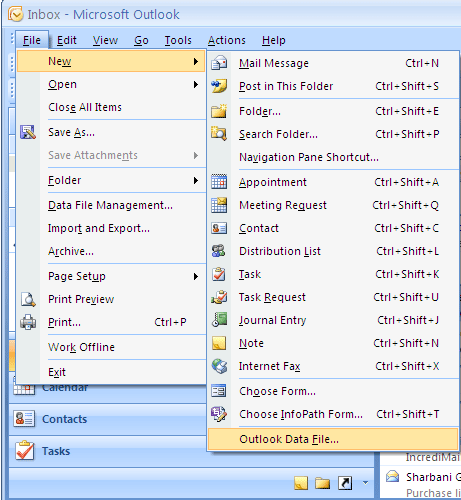
Step 2
A window will be open from where in the File Name field type the name of the PST file which you want to create and click on OK.

Step 3
Now a window will be open where you can set password for your PST file if you want. Type the required password, verify it and click on OK.
A new PST file will be created and can be seen in new Personal File Folder when you will open Outlook.