How to Create New Mailbox at Exchange Server 2007 or 2010
You must have the appropriate Exchange administrative permissions to do so.
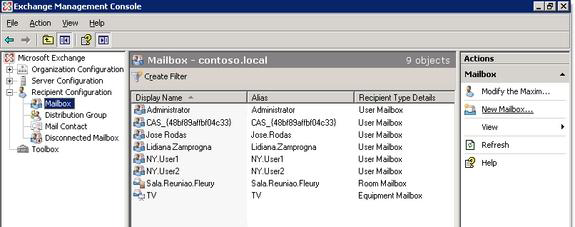
 Open Exchange Management Console and expand Recipient Configuration.
 Select Mailbox option. and then select New Mailbox option in mailbox pane.
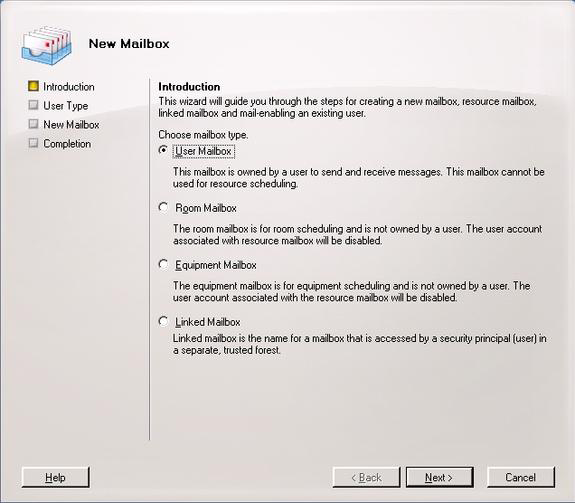
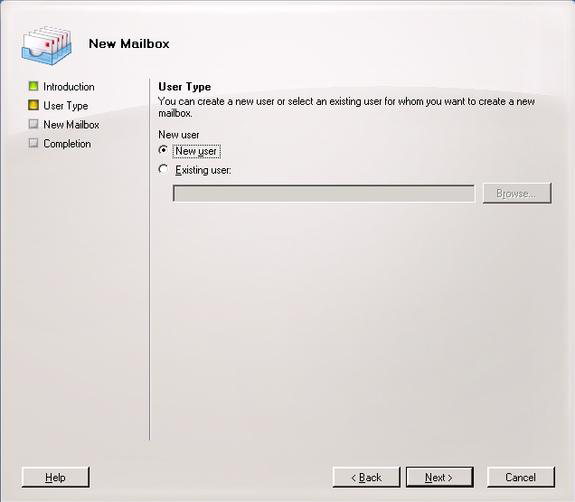
In the User Type window, Administrator can choose either to
create a new user or to assign an existing user to the new mailbox. If
Administrator chooses to assign it to an existing user, Administrator will
have to check, if the account already has a mailbox associated with it or
not. Select Next to continue.
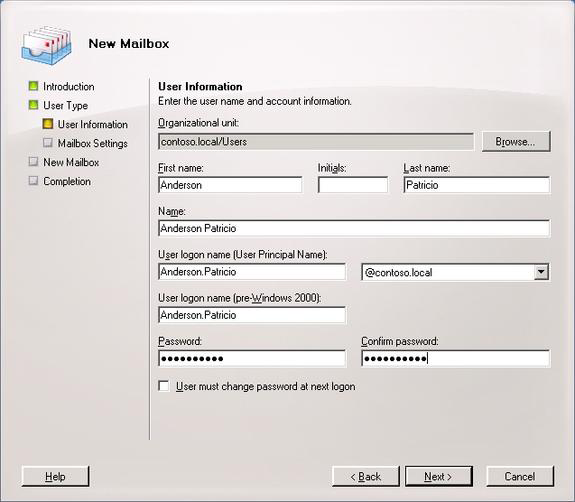
- User Information: In the User Information window, Administrator has
to fill the personal information of the user and select the Organization Unit
where it will be created. After this Select Next.
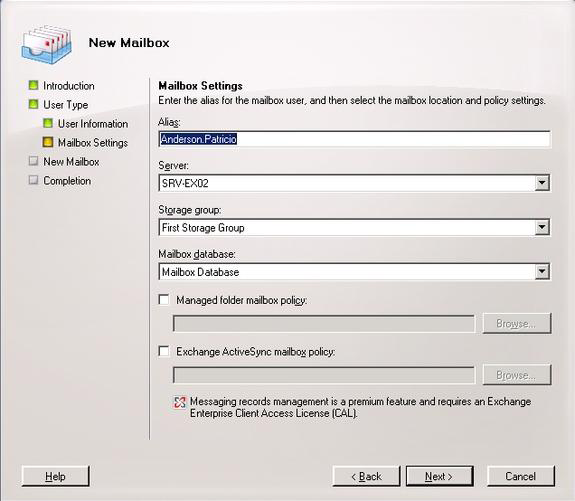
- Mailbox Settings: On the Mailbox Settings page, Administrator can
define the mailbox information such as Alias, Mailbox Server, and Mailbox
Store where the new mailbox will be located. The policies for Mailbox and
ActiveSync can also be defined in this step. Administrator can choose
which fields we are going to fill out and then click Next to continue..
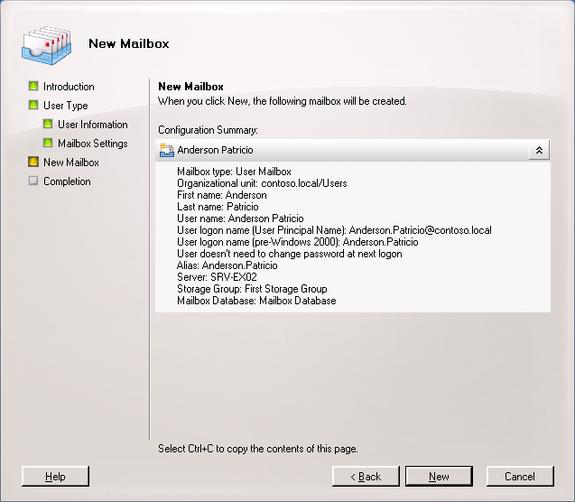
- New Mailbox: In the New Mailbox Window, administrator will get a
summary of all the information that he selected in the previous steps.
These parameters will be used by the Power Shell engine for the creation
of this mailbox object. To create the mailbox, click on New.
- Completion: In the Completion window, Administrator will see the
cmdlet New-mailbox and the parameters which he used in the creation
process of this new mailbox.
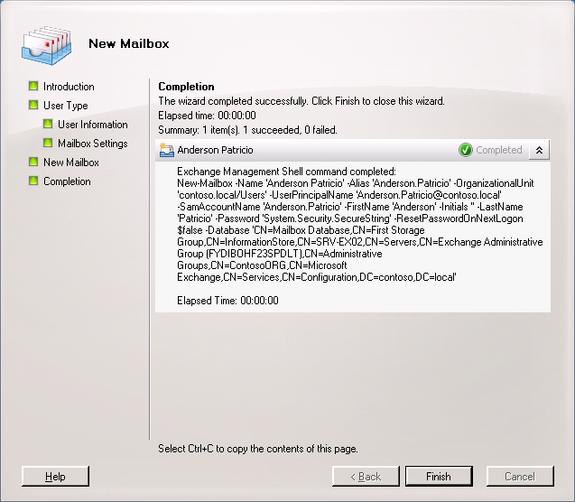
- The final screen of the New Mailbox Wizard, shows the
cmdlet used in the creation of the mailbox
- After doing above steps then click Apply and OK button for the screen shown in Step 3.
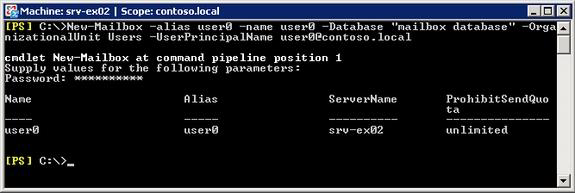
To create a user using Exchange Management Shell, Administrator can run
the following cmdlet
New-Mailbox –alias <alias> -name <name> -Database <Database name> - Organization Unit Users –User Principal Name <UPN value, example: Anderson@contoso.local>
If Administrator does not type all the required parameters, Administrator will get a prompt asking for the parameters that are missing. In given screen, Password prompt is visible to fill out the password. Users get created after entering the password.